
Google Pics Features: What the Workspace AI Image Editor on Nano Banana Can Do
Google Pics is an AI image editor built into Google Workspace, running on Google’s Nano Banana image generation and editing model. General availability began on September 1, 2026, according to the official announcement on blog.google — and the product is not Google Photos: it does not store your camera roll, it creates and edits pictures.
The point of the feature set is control, not just generation. A plain prompt box hands back a new image every time and hopes it’s closer to what you meant; Pics instead lets you change one object, one line of text, or one flagged area of an existing image and leave the rest of the frame alone. That distinction runs through every feature below.
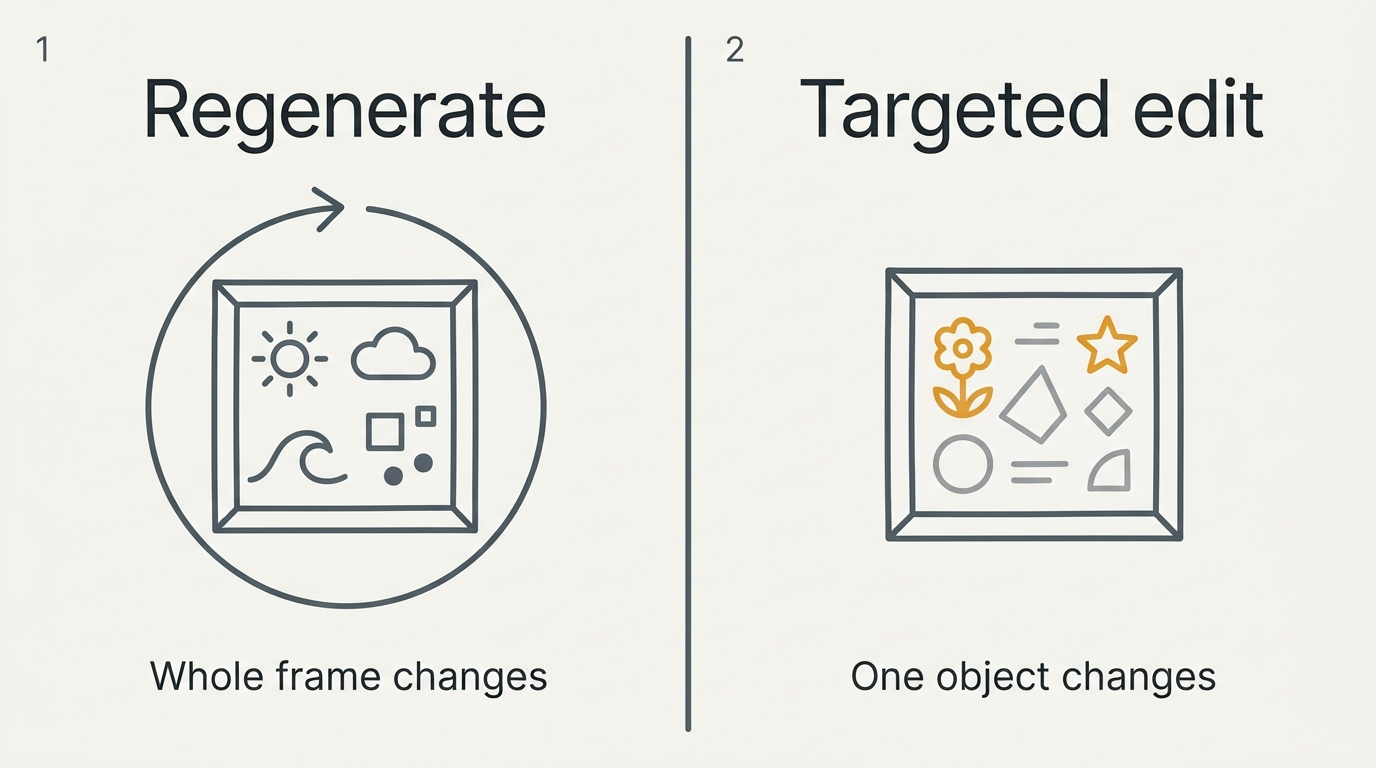
Object segmentation: change one thing, not the whole frame
Segmentation is the feature the rest of the toolset is built around. Pics can isolate a single element in a picture — a product, a person, a logo, a background — and treat it as something you act on separately from everything else in the frame.
What it replaces
A generic image generator redraws the entire picture for every edit, so a fix to one detail drags the lighting, the background, and every other element along with it. Pics isolates the object instead: the rest of the composition holds still while that one piece changes.
Text comments on specific areas
Instead of rewriting a whole prompt to describe a small fix, you can leave a text comment on a specific area of the image asking for a targeted change there. Google’s own description of the feature is direct about it.
Pics lets you easily isolate an object and transform it without altering the rest of your image. You can input text comments on specific areas to request targeted changes and execute multiple edits at once.
Google, Try Google Pics
Several such comments can be queued and executed in one pass, so a round of feedback — smaller logo, warmer background, different jacket color — becomes one operation instead of three separate rewrites of the file.
In-image text editing and translation
The second core capability works on the words baked into a picture rather than the objects in it.
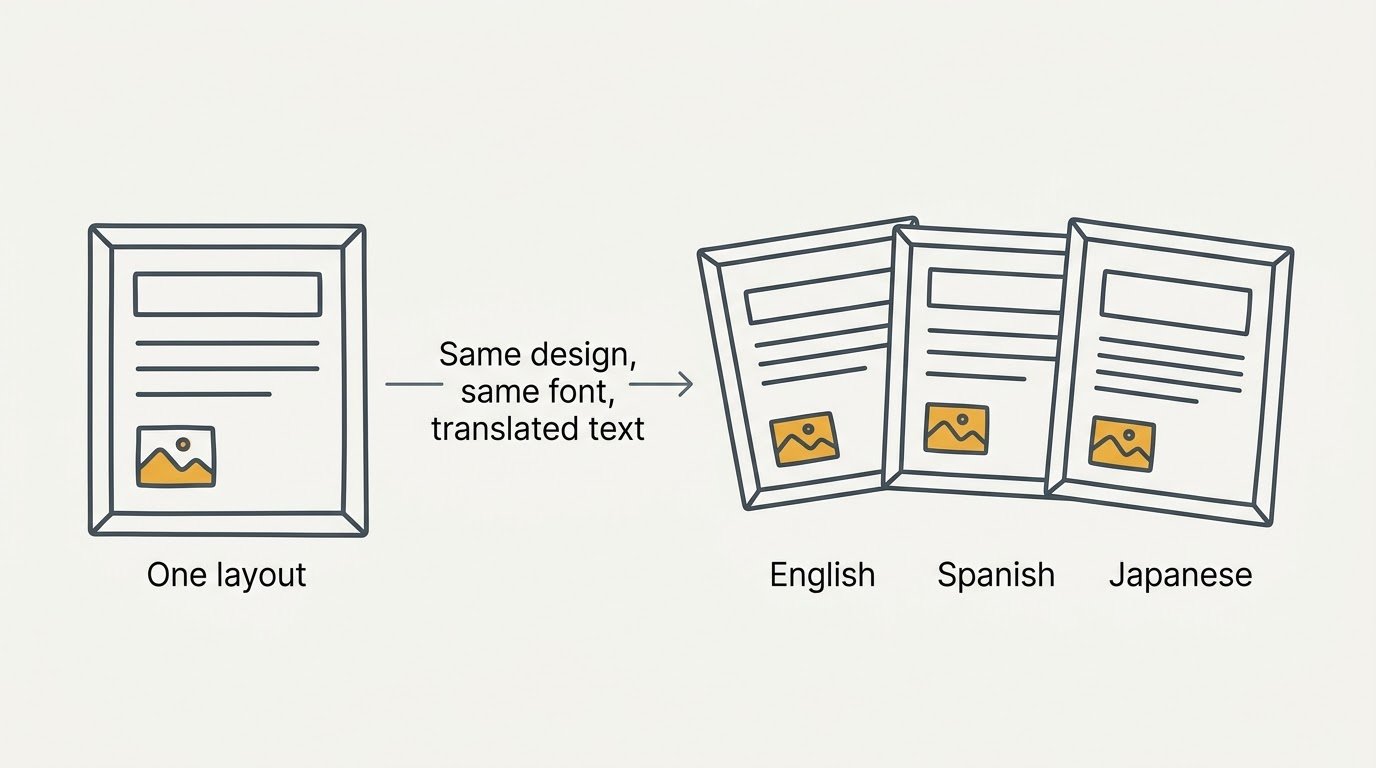
Editing the words without rebuilding the layout. A caption, a label, or a sign inside an image can be corrected or reformatted in place. Google states the edit does not disrupt the surrounding design or change the font, so the fix doesn’t require rebuilding the graphic from the source file.
One layout, many languages. The same mechanism translates text inside an image, which in practice means one design can be adapted for several markets instead of redesigned for each. The Docs Editors help center lists support for 29 languages across generation and editing, including English, Spanish, French, German, Chinese, and Japanese.
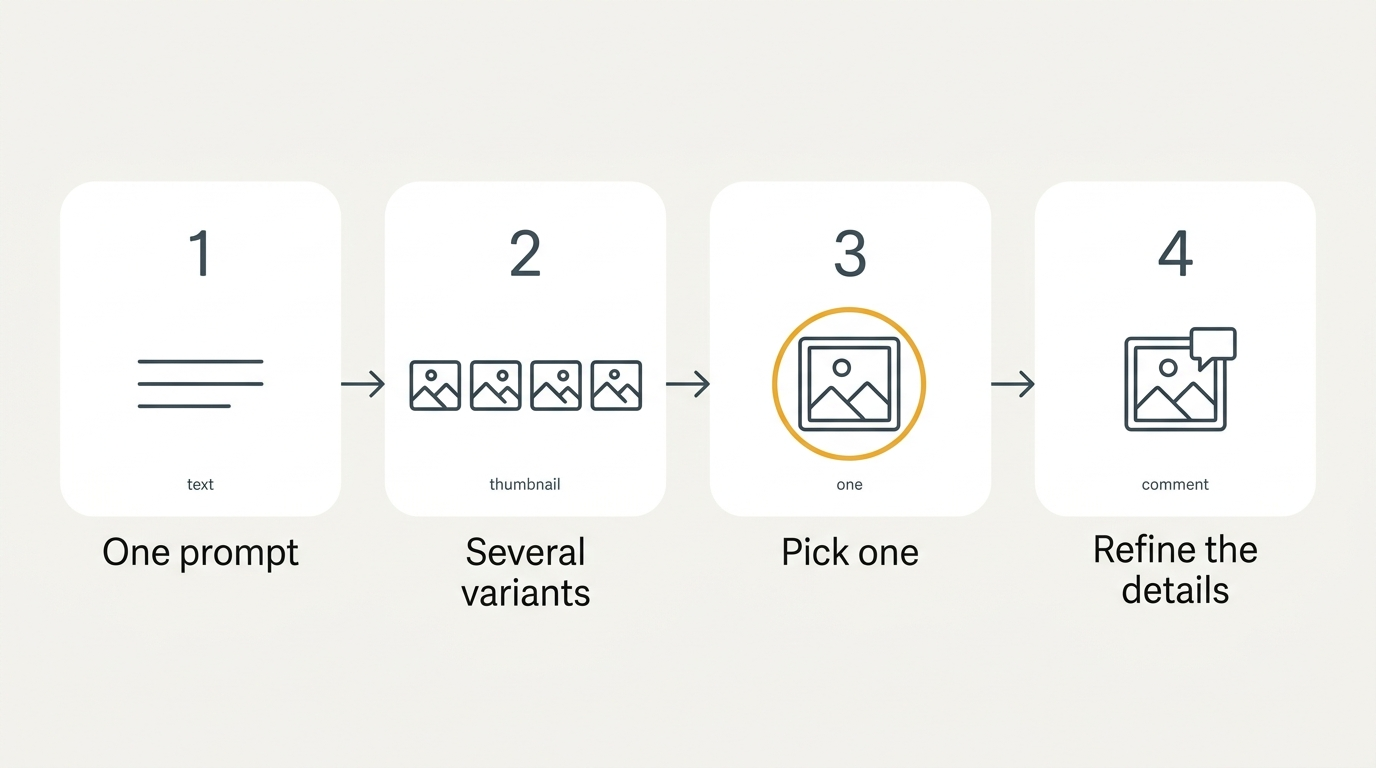
Multiple generations from a single prompt
A single prompt in Pics returns several options rather than one. The first step in a session is picking a direction from a set of variants, not committing to whichever result came back first.
Combined with segmentation, this shapes a two-stage workflow: generate a handful of options, choose the strongest composition, then refine its specifics through targeted edits and area comments rather than regenerating from scratch. The walkthrough of creating and editing an image in Pics covers this loop step by step, and it’s worth reading before judging the Google Pics AI editor on a single prompt alone.
Output control: cropping, 2K and 4K upscaling
A feature list matters less if the finished file can’t leave the tool in the shape it needs to be. Pics handles that finishing work in the same window.
| Capability | What it covers |
|---|---|
| Aspect-ratio cropping | Presets for web, social media, print, and digital layouts |
| Upscaling | Output at 2K and 4K resolution |
| Quota cost | Downloading at higher resolution uses generative quota faster |
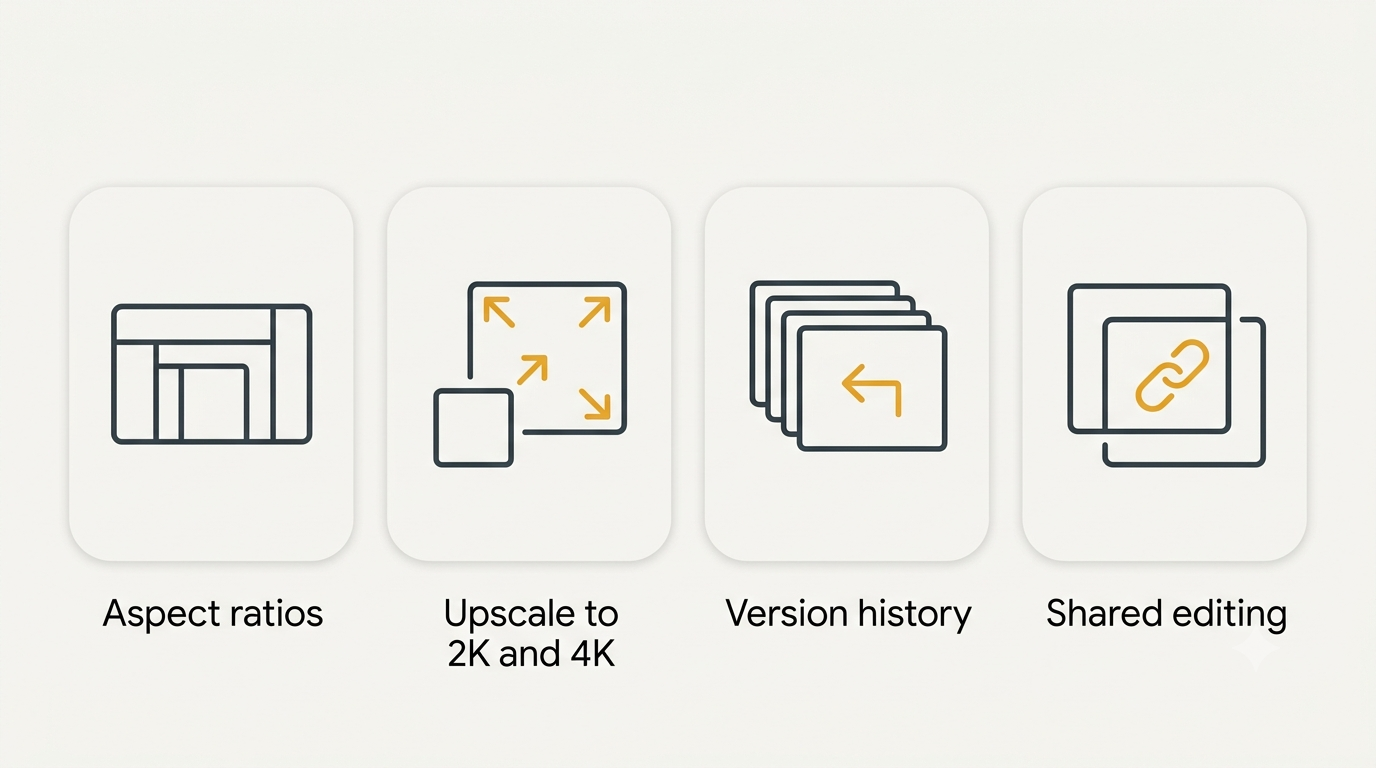
An image can be cropped to the format it’s actually going into — a social post, a printed flyer, a digital slide — without reassembling it in a separate editor. Upscaling goes up to 2K and 4K, and the Workspace Updates rollout post is the source for that ceiling. The one caveat worth knowing before exporting everything at 4K by default: Google’s help documentation notes that higher-resolution downloads consume generative limits faster, without publishing what those limits actually are. Plan-level detail on what’s included is on the pricing page.
Version history and collaborative editing
Because Pics files behave like other Workspace documents, they inherit two features image generators don’t usually have.
Rolling back a bad edit
Every step of editing accumulates into a version history, and any earlier state can be restored. Since editing in Pics is a sequence of targeted changes rather than a pile of unrelated generations, that history actually traces a line of work instead of a random set of attempts.
Working on the same image together
A Pics creation can be shared by link the same way a Doc or Sheet is, and more than one person can edit it at the same time. Files live in Google Drive alongside the rest of a project rather than as loose exports passed around in chat — more detail on how that fits the rest of Workspace is on the Workspace integration page.
Editing images inside Docs and Slides
Pics is both a standalone product and a layer built into the apps people already use for drafting documents and decks.
The overlay editor
Clicking an image already placed in a Google Docs or Slides file opens the Pics editor over the document itself, so a fix doesn’t mean exporting the image, editing it elsewhere, and re-uploading it. The step-by-step version of this is covered in how to use Google Pics and on the Docs integration page.
Standalone at pics.new
The dedicated entry point is pics.new, where Pics opens as its own application in the browser rather than inside another document. Integration with Google Drive is described as arriving “in the coming weeks” after the September 1, 2026 launch, on top of the Docs and Slides integration that shipped at general availability.
Nano Banana: the model underneath
What Google actually says
Google attributes Pics to “our latest Nano Banana image generation and editing model.” No version number appears in the announcement, the Workspace blog post, or the help center — the “Nano Banana 2” label that shows up in some outside coverage is a description from that reporting, not wording Google itself has used, and this page doesn’t repeat it as if it were a spec.
The same model family also powers image generation inside Gemini’s chat interface. The difference is the surrounding workflow: a chat assistant hands back a picture, while Pics wraps that same model in objects, area comments, version history, and a shared file. The comparison against the product it’s most often confused with is worked through on the Pics vs. Google Photos page.
Who gets these features
Plans and rollout
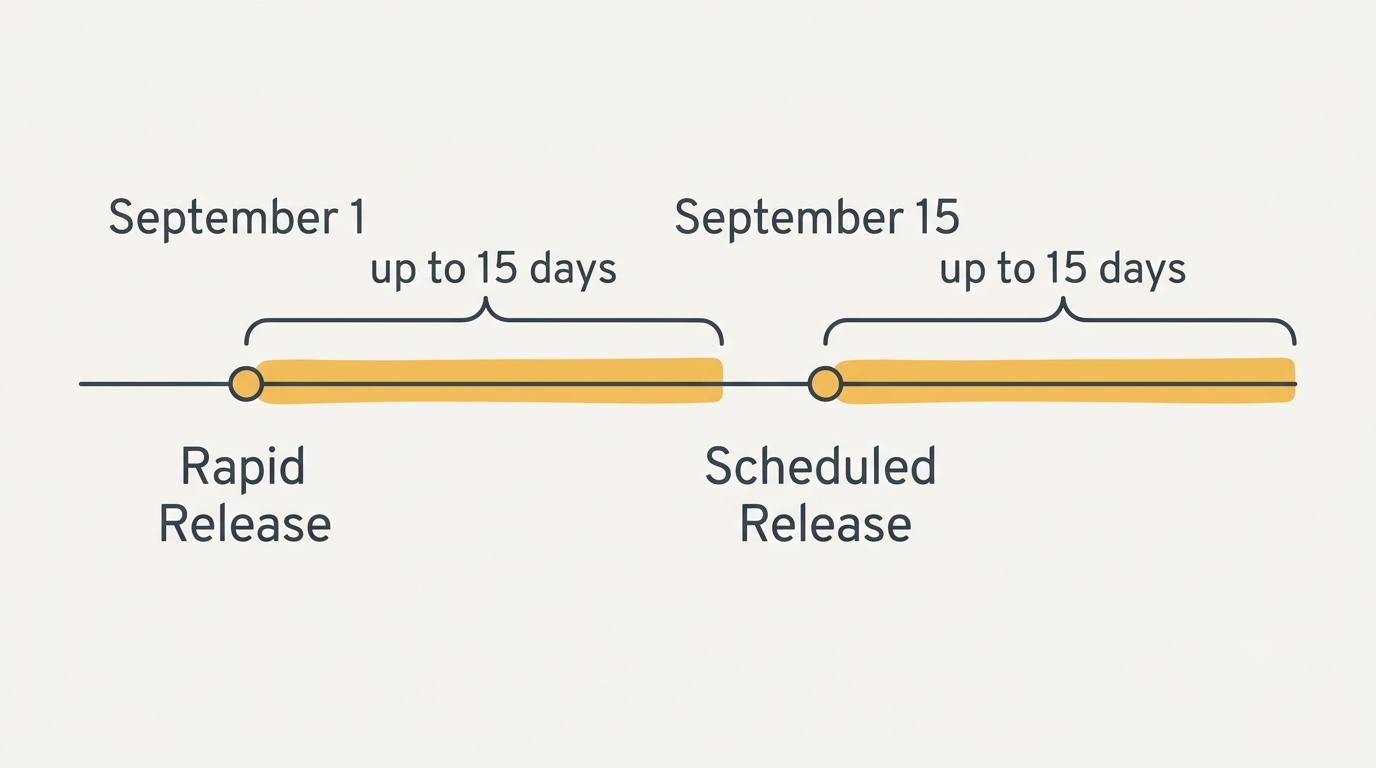
Access comes through the personal Google AI Pro and Google AI Ultra subscriptions, and through Workspace Business Standard, Business Plus, Enterprise Standard, Enterprise Plus, the AI Expanded Access add-on, and Google AI Pro for Education — Business Starter is not included. Rollout follows Google’s usual two-track schedule: Rapid Release started September 1, 2026, and Scheduled Release began two weeks later, on September 15, with visibility taking up to 15 days to reach every domain. Admins can turn the feature off at the domain, organizational-unit, or group level; by default it’s on.
- Check that the subscription or Workspace edition in use is on the list of eligible plans.
- Confirm the domain has reached its release track before assuming the feature is missing.
- Open pics.new directly, or click an existing image in a Docs or Slides file.
- If nothing appears, wait out the rollout window before treating it as a fault.
Full detail on which plans and countries qualify — availability covers essentially every Workspace market except personal accounts in Germany — is on the access page, per Google’s own plan overview and the Docs Editors help center.
What is missing or unconfirmed
Quotas
Google does not publish quota numbers for Pics. What is documented: generative features draw on a limit, higher-resolution downloads use it up faster, and extended generative access for eligible plans runs at least through February 28, 2027.
Watermarking
SynthID, the watermarking scheme Google applies elsewhere to AI-generated images, is not mentioned for Pics in the announcement, the Workspace Updates post, or the help center. It would not be a surprise if it applied, given how it’s used across the rest of Google’s image tools, but nothing official confirms it, so this page doesn’t state it as fact.
Not a Google Photos replacement
Pics is a creation and editing tool for work, and it lives inside Google Pics in Workspace; Google Photos is a personal photo library. The two apps solve different problems and neither is built to replace the other — the full breakdown of what separates them is on the Pics vs. Google Photos page.
Official sources
- Try Google Pics: Easy image creation and editing in Google Workspace
- Google Pics brings pro-level AI image creation and editing to Google Workspace
- Workspace Updates: Google Pics rollout
- Google Docs Editors Help: Learn about Google Pics availability
- Google AI plans
- pics.new