
Google Pics in Google Workspace: How the Nano Banana AI Image Editor Works in Docs, Slides and Drive
The AI image editor Google Pics became broadly available inside Google Workspace on September 1, 2026, built on the Nano Banana model, according to the official Workspace announcement. The point of the product is that it lives inside the files where the work already sits — a document, a slide deck, a shared drive — instead of asking anyone to leave the tab.
It helps to separate Pics from Google Photos early, because search results tend to blur the two. Photos backs up and sorts what a camera captured; Pics creates and edits images for a document, a slide or a landing page. A fuller side-by-side is on the Google Pics vs Google Photos page.
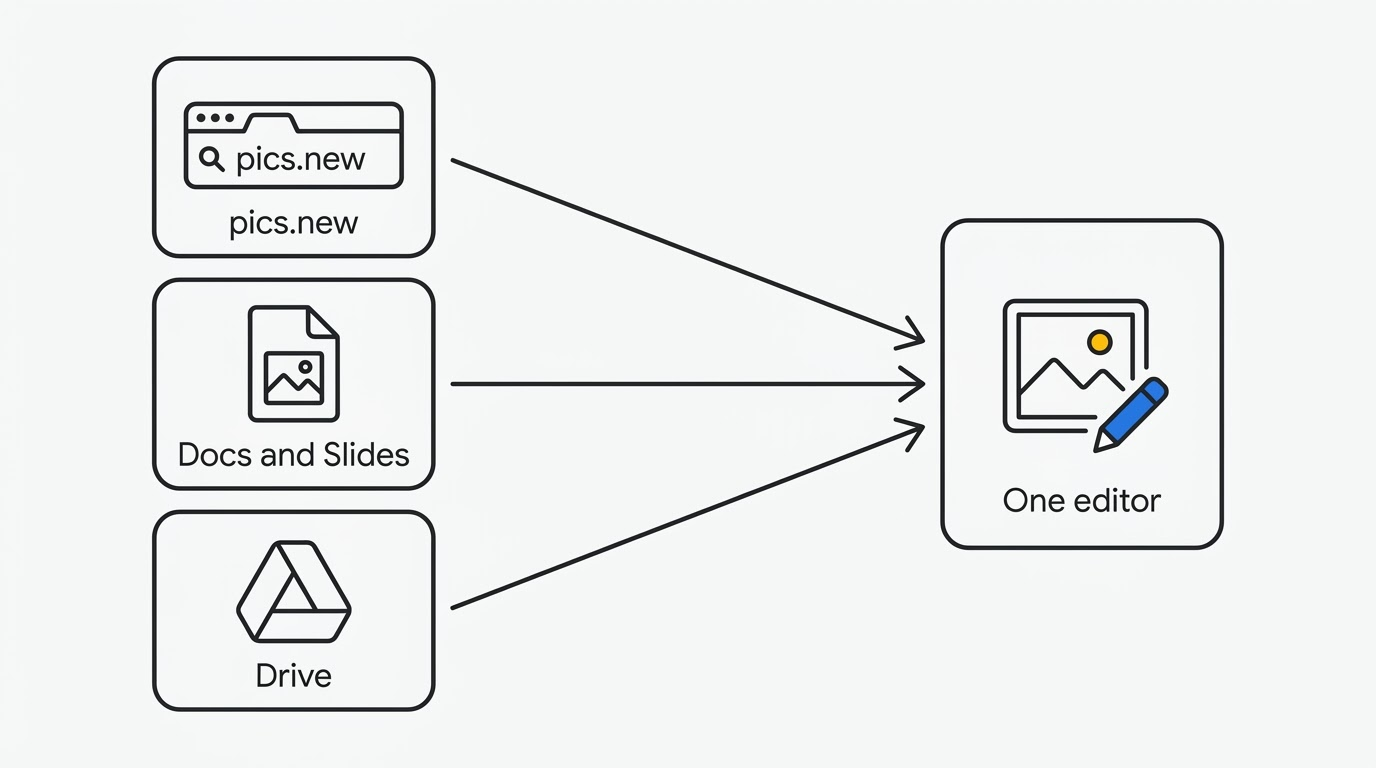
What “inside Workspace” actually means
The word “integration” covers three different things, and they arrived on three different schedules.
Standalone app at pics.new. Pics has its own short address, pics.new, following the same pattern as docs.new. The link redirects to docs.google.com/images/u/0/create, so Pics is wired into the same Docs and Drive infrastructure rather than running as a separate product off to the side. It needs a desktop browser; there is no mobile app.
An overlay in Docs and Slides. Clicking an image already placed in a document or a slide opens Pics controls directly over it. Same tab, same file — the edited image replaces the original in place.
Drive, on a slower timeline. The Workspace announcement states it plainly: “This integration starts today with Docs and Slides, and will roll out to Drive in the coming weeks.” The Workspace Updates release note is more specific — creating and opening Pics files in Drive works from launch, while using Pics “to open and edit nearly any image you’ve saved in Drive with a single click” is still coming in the following weeks.
Editing an image in Google Docs and Google Slides
A picture dropped into a slide used to mean a small loop: download it, open a separate tool, regenerate the whole frame to change one object, upload the result, resize it to fit. The overlay collapses that loop into selecting an object and describing the edit in a sentence.
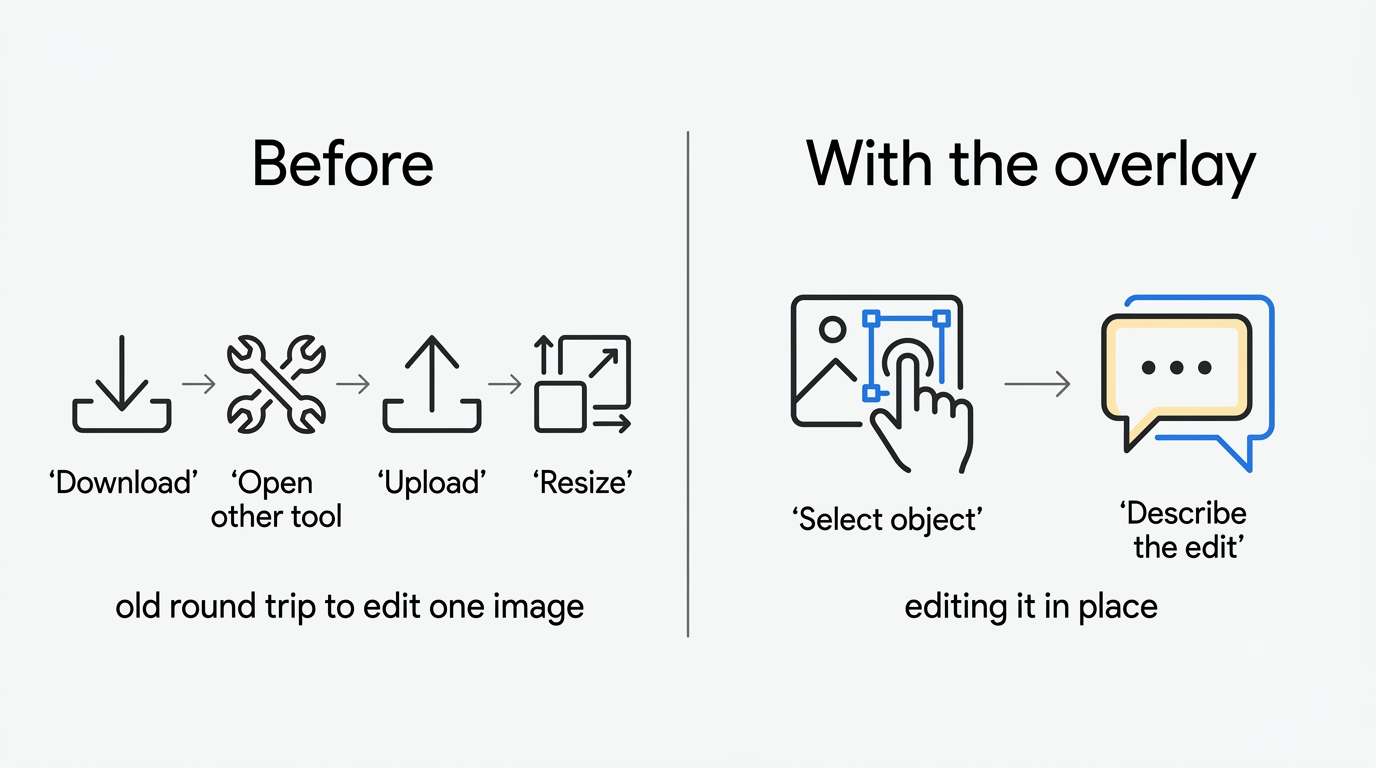
What the overlay gives you
Object segmentation lets someone change a single element — a product, a person, a background detail — without regenerating the rest of the frame. Text inside the image can be edited and translated while keeping the original font and layout. Cropping, upscaling to 2K or 4K, and version history round out the toolset. A full feature breakdown covers each control, and a step-by-step walkthrough shows them in use.
What you can bring in
A source image can come from three places, per Google’s setup guide:
- The local computer, uploaded directly.
- Google Drive, picked from an existing file.
- Google Photos, pulled straight from a saved photo.
Accepted formats are .jpg, .png, .bmp and .tiff. Matching a style to a reference image currently works only with English prompts. How the editor behaves inside a document is covered separately.
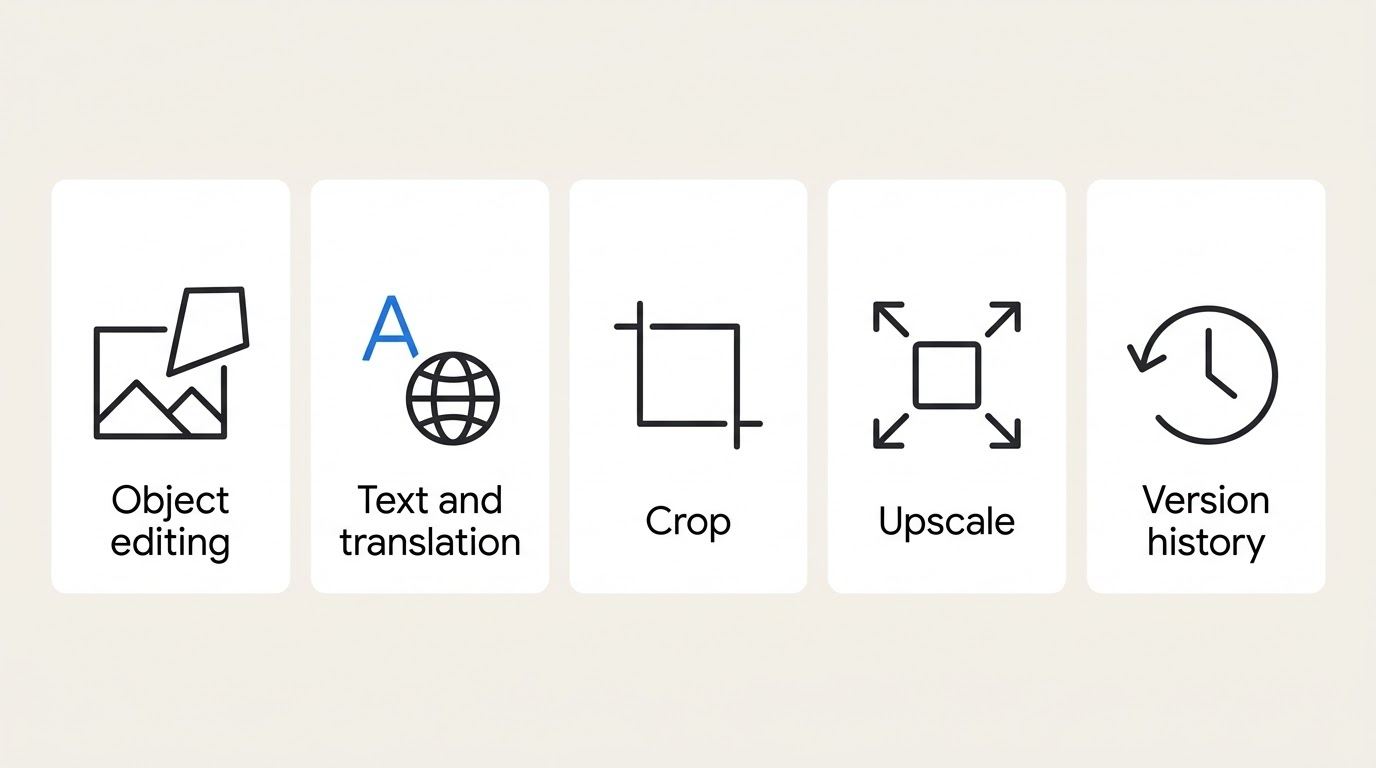
Where someone starts from decides which of those controls they get and how the result is saved, so it is worth laying the three entry points against each other.
| Where you start | What opens | Typical task |
|---|---|---|
| pics.new | Standalone Pics app | Create a new image from scratch |
| Image already in a Doc or Slide | Overlay on the same tab | Edit or replace part of an existing image |
| Drive (at launch) | Pics files created and stored there | Save, share, and reopen finished images |
Google Drive: what works now and what was announced
This is the part to check before assuming Drive already behaves like a full editor. Drive is the storage layer under every Pics file, so it matters which half of that relationship is live today and which half is still a promise.
Google Pics files are ordinary Drive files underneath — they inherit sharing permissions, they show up in Drive search, and they can be moved into folders like anything else. What’s different is how far that Drive integration reaches back into images that were never touched by Pics in the first place.
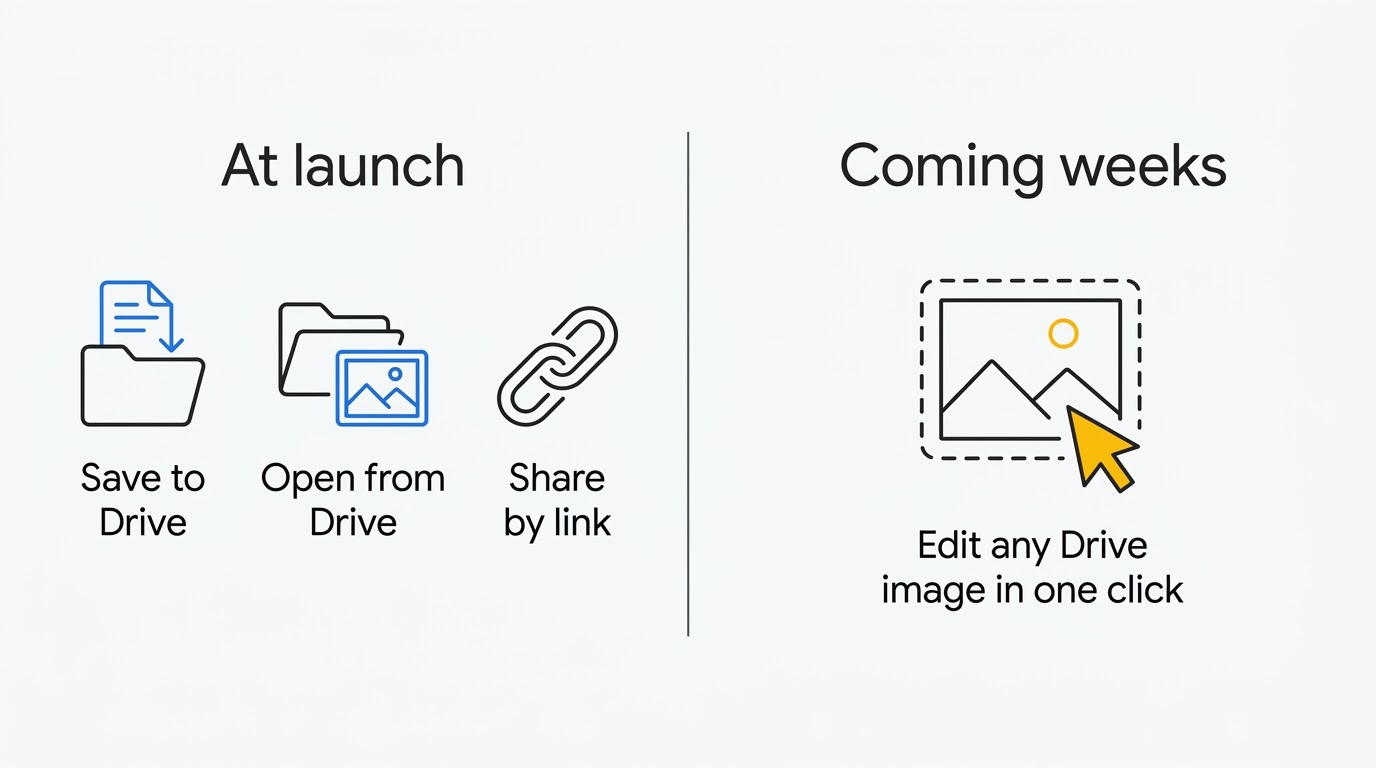
Splitting the two halves out makes the boundary easier to hold on to when reading Google’s own pages, which describe it inconsistently.
| Available at launch | Announced for the coming weeks |
|---|---|
| Files created inside Pics are saved to Drive | Opening and editing nearly any existing image already saved in Drive, in one click |
| Those Pics files can be opened directly from Drive | — |
| Files can be shared by link like any other Drive item | — |
| A file already sitting in Drive can be pulled into Pics as a source image | — |
Worth flagging a real gap between two Google pages: the Google Pics product page describes Drive as one finished integration, while the release note and the announcement post describe it as arriving in stages. When the two disagree, the release note is the one to trust for what’s actually live today.
Working on the same image with other people
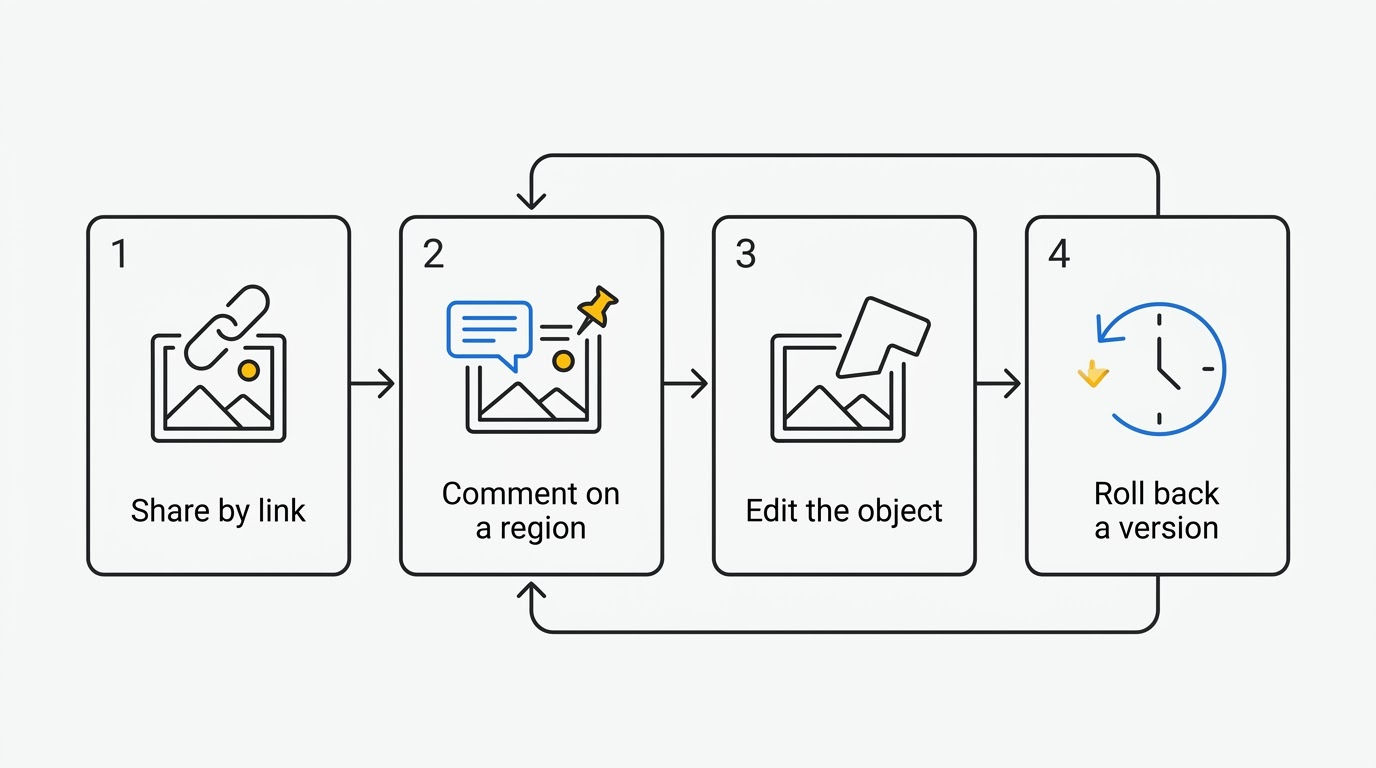
Collaborative editing is what makes Pics feel like a Workspace app rather than a generator with a Google logo stuck on it. Coworkers can be invited to a file or added by a shared link, and several people can open the same image at once.
This integration starts today with Docs and Slides, and will roll out to Drive in the coming weeks.
Google Workspace announcement
Comments can be attached to a specific region of an image, the same review pattern people already use on a paragraph in Docs, rather than being left as a general note on the whole file. Version history in the Google Pics AI editor keeps every prior state, so a team can roll back to whichever version was actually approved instead of losing it under a newer edit.
What a Workspace administrator controls
Pics ships turned on for most organizations by default, which is exactly why it’s worth an admin’s attention before employees discover it on their own.
Three levels of control. An administrator can allow or block Pics for the whole domain, for one organizational unit, or for a specific access group. The setting lives in the Admin console, under Apps, then Google Workspace, then Drive and Docs, where Google Pics has its own entry — see Google’s guide on turning Pics on or off. Making the change requires the Service Settings administrator privilege and can take up to 24 hours to apply everywhere. There’s no separate toggle for the Docs and Slides overlay — one switch covers Pics, and it depends on the Drive and Docs service being enabled and on users having permission to create new Drive files.
Three things Pics needs from the Drive and Docs service before it will run at all:
- The Drive and Docs service itself must be turned on for the user.
- The user needs permission to create new files in Drive.
- The organizational unit or access group must not have Pics explicitly disabled.
What switching it off actually does. With Pics disabled, affected users can neither create a new Pics file nor open one shared with them, including files shared from another organization.
Why you may not see Pics yet
A short checklist, roughly in the order worth checking:
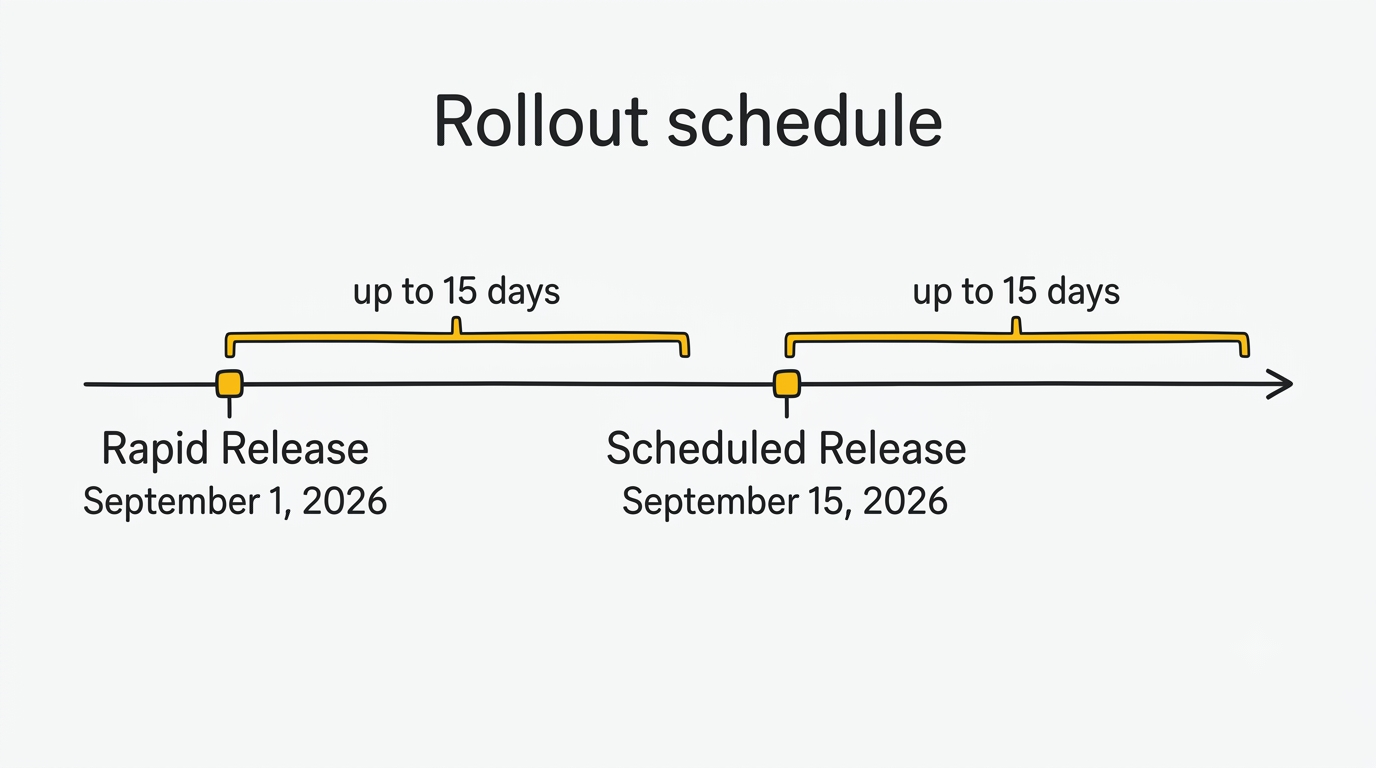
- Release track. Rapid Release users started seeing the Google Pics image editor from September 1, 2026, rolling out over up to 15 days; Scheduled Release organizations start from September 15, 2026, with the same rollout window, per Google’s availability page.
- Edition. Included with Business Standard and Plus, Enterprise Standard and Plus, the AI Expanded Access add-on, and Google AI Pro for Education, plus Google AI Pro and Ultra on personal accounts. Business Starter is not on that list.
- Admin setting. An administrator may have turned the feature off for a domain, organizational unit, or access group.
- Device. Pics needs a desktop browser — Chrome, Firefox, or Edge (Edge on Windows only) — there’s no mobile app.
- Region. Availability follows wherever Workspace itself is available, except personal accounts in Germany.
Editing and generation currently work in roughly 29 languages, and expanded access to the generative features runs at least through February 28, 2027. Downloading images in high resolution uses up those generation limits faster than a standard export. Which plans include the editor is set out on the pricing page, and whether a given account qualifies is covered under availability; the consumer subscriptions themselves are listed on Google AI plans.
Official sources
- Google Pics: AI Image Generator and Editor — the Workspace product page.
- Introducing new Pics AI image editing tool in Workspace — the Workspace blog announcement.
- Try Google Pics — the Google blog launch post.
- Google Workspace Updates: Google Pics rollout — the exact rollout schedule.
- Get started with Google Pics — setup and usage guide.
- Learn about Google Pics availability — editions, regions, languages.
- Turn Pics on or off for users — admin console instructions.
FAQ
More usage questions are answered on pics.wiki/faq/.