
Google Pics FAQ: the Google Workspace AI image editor built on Nano Banana
Google Pics is the AI image creation and editing tool that Google Workspace launched on 1 September 2026, built on the Nano Banana image model and available at pics.new. Because search engines still treat “pics” as a synonym for “photos”, most of the questions people ask about it get answered with information about Google Photos instead — a completely different product. The answers below are about Google Pics specifically, and each one traces back to a Google source listed at the end. For a fuller walkthrough of what the tool can do, see our Google Pics features overview.
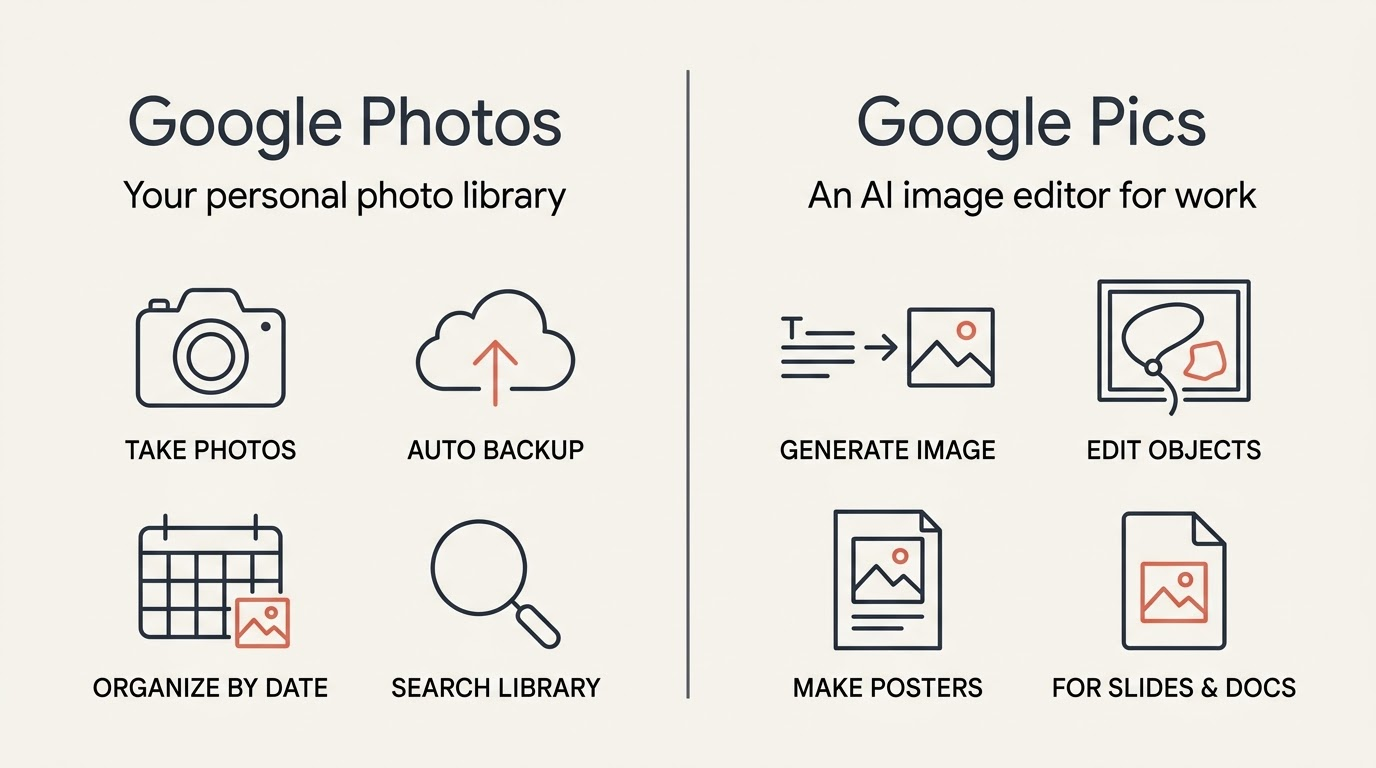
Questions are grouped the way people arrive at them: what the tool is, what it costs, how to use it, and what it will not do.
Official sources
- Try Google Pics: easy image creation and editing in Google Workspace — the launch announcement.
- Introducing the new Pics AI image editing tool in Workspace — features and use cases.
- Google Workspace Updates — rollout dates, editions and admin defaults.
- Learn about Google Pics availability — countries, languages, plans, quotas.
- Get started with Google Pics — the help centre walkthrough.
- Supported languages in Google Docs editors — the 29 languages Pics generates and edits in.
- Turn Pics on or off for users — the administrator control referred to above.
- Google AI plans — consumer subscription details.
- pics.new — the editor.
What Google Pics is
If you want the comparison in full, our Google Pics vs Google Photos page walks through where each one belongs.
Google’s own help centre puts the distinction plainly:
Google Pics is an image creation and editing tool powered by Gemini (Nano Banana). With Google Pics, you can design, generate, and edit images with prompts, or use existing images as style and element references for your creations.
Google Workspace Help Centre
That single line is why the two products keep getting confused in search results, even though one manages a personal photo library and the other is a design tool built on a generative model.
Price and access
Google has not put a separate price on Pics. It arrives bundled with subscriptions many people already pay for, which is why “how much does Google Pics cost per month” has no single answer. The table below lines up who gets it and who does not.
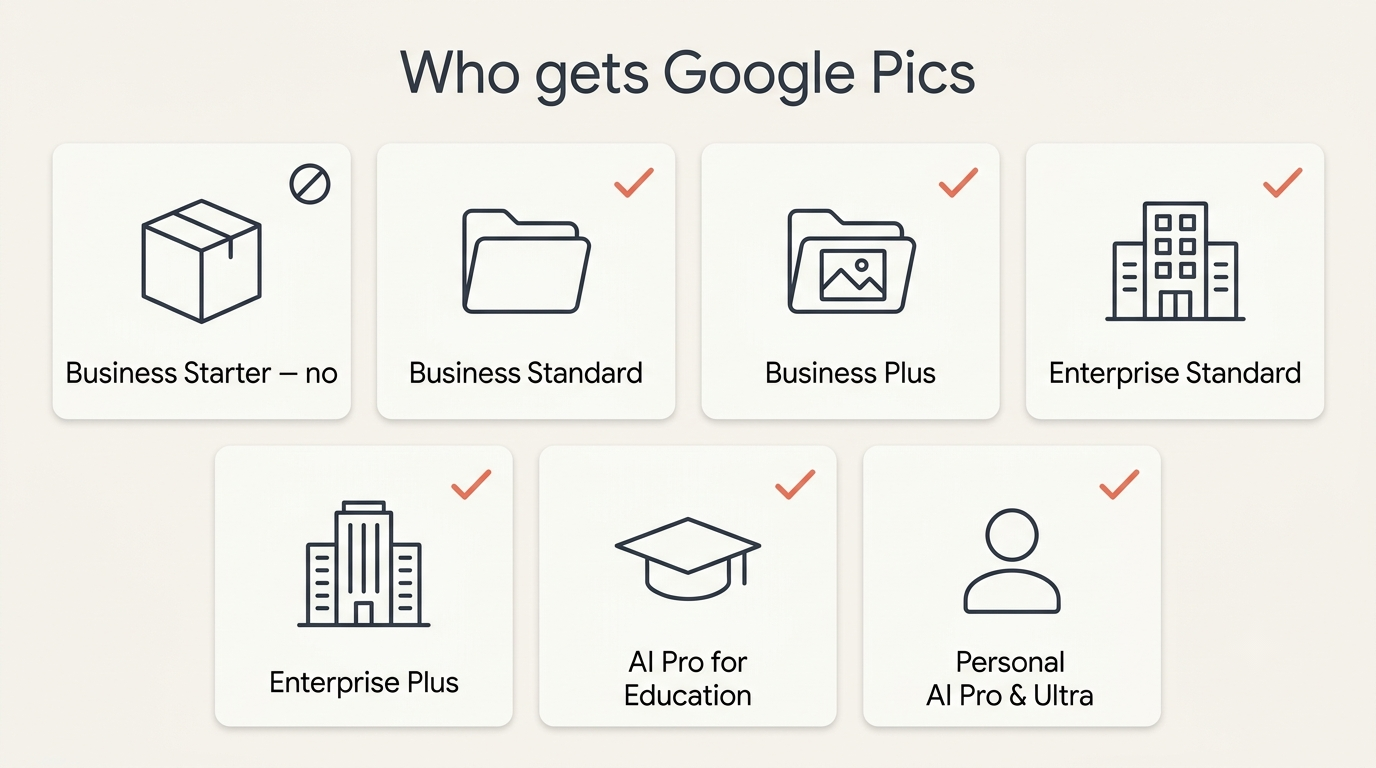
Everything below the heading applies to eligible accounts only, and eligibility is decided by the plan rather than by the country or the device.
| Plan type | Includes Google Pics | Notes |
|---|---|---|
| Workspace Business Starter | No | Business Starter is excluded from the rollout |
| Workspace Business Standard / Plus | Yes | On by default, admin can disable it |
| Workspace Enterprise Standard / Plus | Yes | Same admin controls as Business tiers |
| Google AI Pro for Education | Yes | Included as part of the education add-on |
| Personal Google AI Pro | Yes | Consumer subscription via one.google.com |
| Personal Google AI Ultra (5x / 20x) | Yes | Highest personal usage quotas |
| No subscription | No | Pics requires one of the plans above |
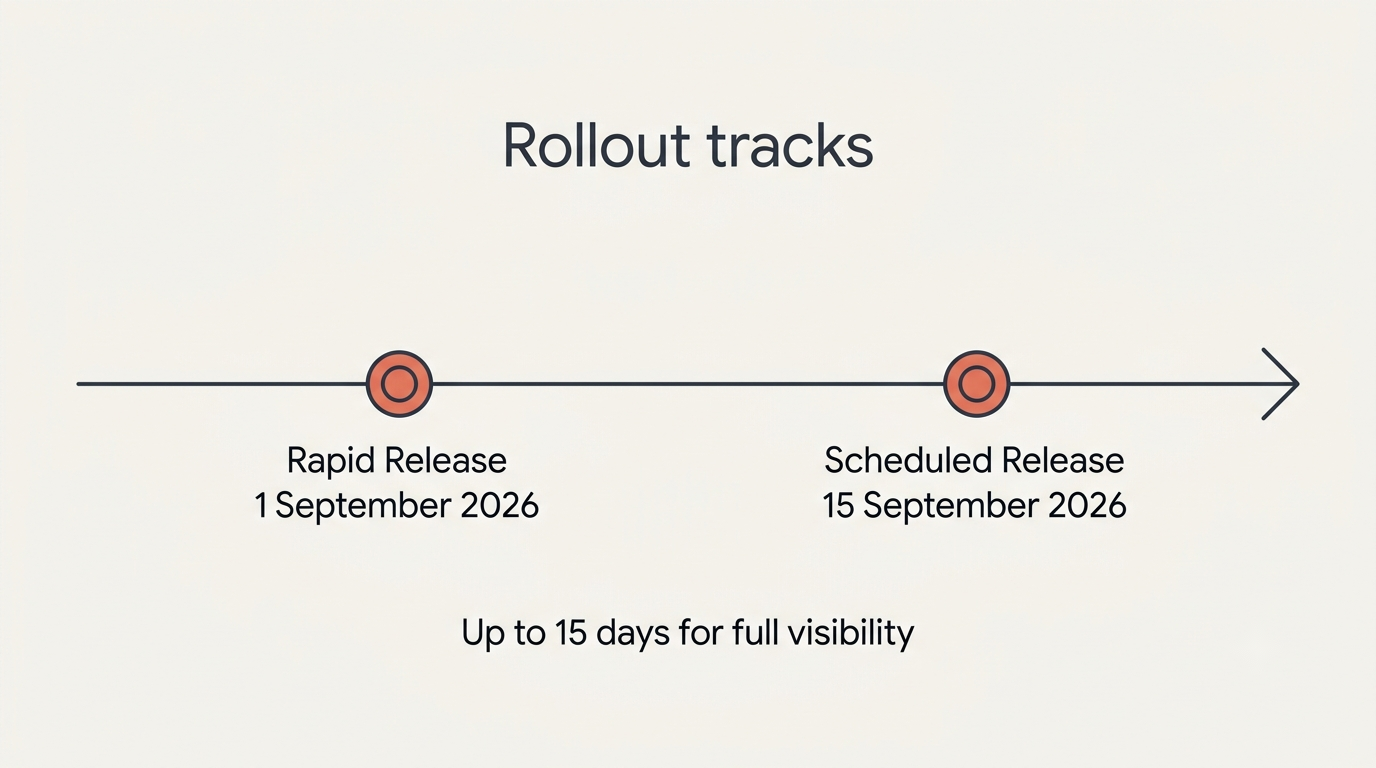
Rollout timing depends on which release track your domain is on:
| Release track | Pics availability starts | Full visibility |
|---|---|---|
| Rapid Release | 1 September 2026 | Up to 15 days after the start date |
| Scheduled Release | 15 September 2026 | Up to 15 days after the start date |
Both tracks carry the same fifteen-day window, so a colleague on the same plan can see the tool a fortnight before you do without anything being wrong.
The plan-by-plan breakdown, including the education add-on and legacy Gemini add-ons, is on our pricing page — and if you manage a Workspace domain, the access and eligibility page covers the admin toggles mentioned above.
Using Google Pics
Start from pics.new or from inside a document. Both entry points open the same editor, so the choice is really about where your source image already lives — your computer, Drive, or a slide you are already editing.
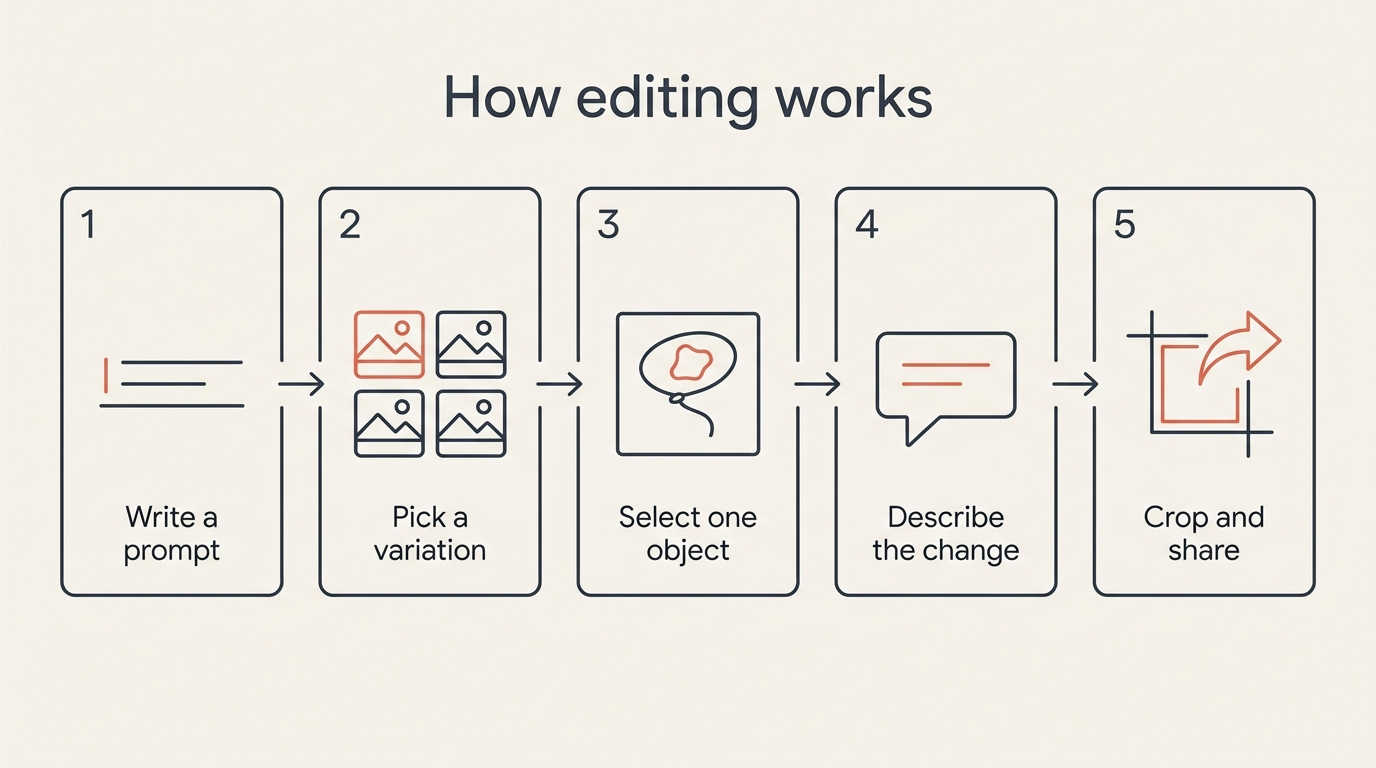
Prompting and editing are two different steps. The first prompt generates a set of variations; picking one and then commenting on individual objects is a separate, non-destructive editing pass that does not touch the rest of the frame.
Sharing and history work like other Workspace files. Because output lands in Google Drive, permissions and version history behave the way they do for a Doc or Sheet, which is why teams can co-edit an image the same way they co-edit a document.
In practice, people reach the editor one of two ways:
- Directly, by opening pics.new in a browser.
- Indirectly, by clicking an image already placed inside a Google Doc or Slide.
Here is the shortest path from a blank prompt to a finished image, for anyone who wants a step-by-step version:
- Go to pics.new or select an image inside Google Docs or Slides to open Pics as an overlay.
- Write a text prompt, or import a file from your computer, Drive, or Photos as a starting point.
- Choose one of the generated variations to continue with.
- Select an individual object in the image and describe the change you want — the rest of the frame is left alone.
- Crop to the format you need and upscale if the destination needs a larger image.
- Share the result by link, or leave it in Drive where collaborators already have access.
Our how to use Google Pics guide expands each of these steps with screenshots.
Limits and open questions
Not every question about the Workspace AI image editor has a published answer yet. The list below separates what Google has confirmed from what is still assumption.
- Usage is capped by quotas, but Google has not published the numbers.
- Higher-resolution downloads consume those quotas faster than standard ones.
- No mobile app has been announced, only the browser editor and the Docs/Slides integration.
- Watermarking has not been addressed in the launch materials for Pics specifically.
- Availability excludes personal accounts in Germany, while Workspace accounts there are unaffected.
Where an answer above says Google has not published something, that is the current state of the documentation rather than an omission on this page. Those points are tracked and updated as Google fills them in — the Google Pics documentation page keeps a running log, and the Workspace rollout page covers admin-side visibility in more depth.