
How to Use Google Pics: A Step-by-Step Guide to the Workspace AI Image Editor
Google Pics is Google Workspace’s AI image editor, built on the Nano Banana model, and it opens at pics.new. It is not Google Photos and not a place to store camera memories — Google names it a creative tool for projects at work, home, and school, separate from Photos’ job of backing up and organizing personal pictures.
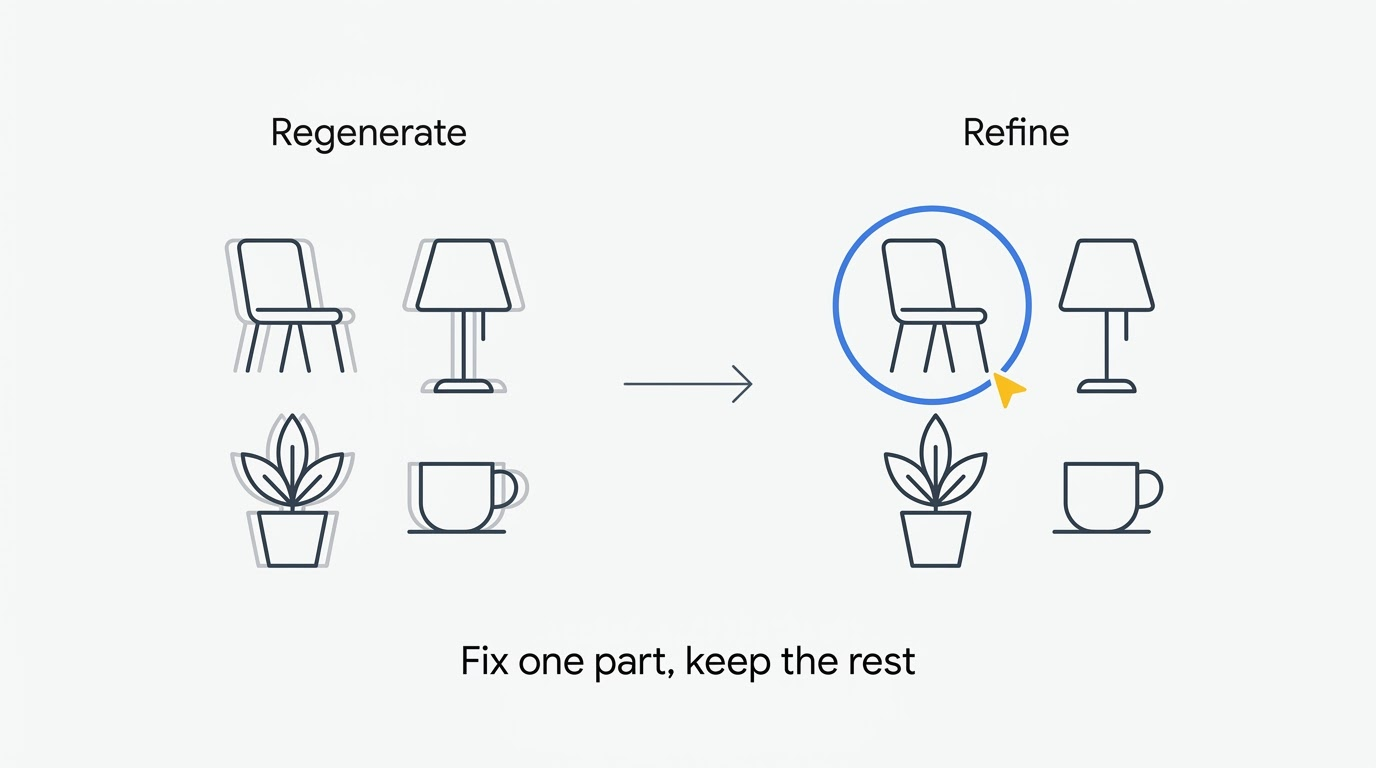
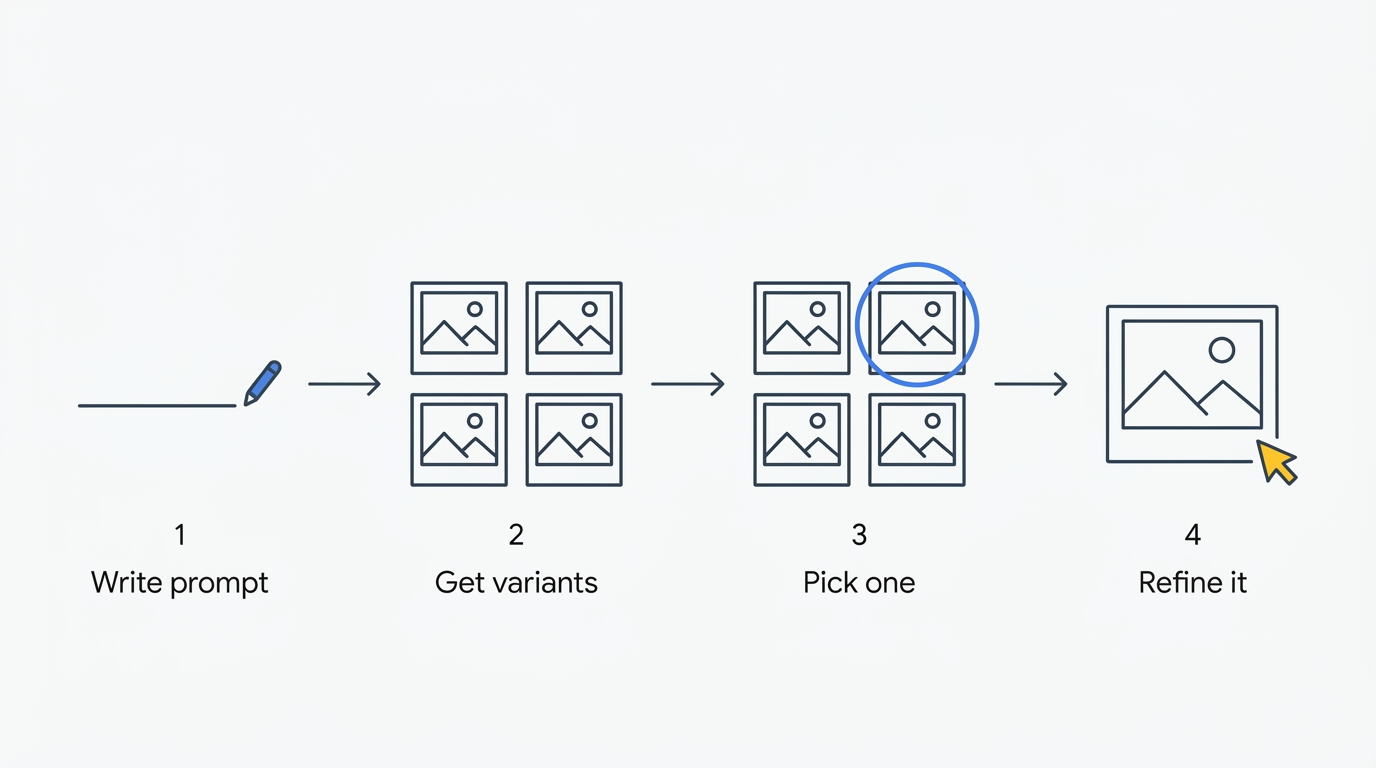
The way it works is simple once you see the shape of it: generate a rough frame, then fix the frame piece by piece instead of rewriting the prompt until it magically works. Below is the full path from an empty prompt bar to a downloaded file.
Before you start: access, devices and file types
There is no free tier. On personal accounts, Pics comes with Google AI Pro, Google AI Ultra 5x, or Google AI Ultra 20x. On Workspace, it ships with Business Standard, Business Plus, Enterprise Standard, Enterprise Plus, or the AI Expanded Access add-on — Business Starter is not included. Education accounts get it through Google AI Pro for Education. Google has not announced a standalone price for Pics; current Google AI plans are broken down on the pricing page, and eligibility details live on the access page.
| Requirement | What qualifies |
|---|---|
| Personal plan | Google AI Pro, Google AI Ultra 5x, Google AI Ultra 20x |
| Workspace plan | Business Standard, Business Plus, Enterprise Standard, Enterprise Plus, AI Expanded Access add-on |
| Not included | Business Starter |
| Education | Google AI Pro for Education |
| Device | Desktop browser only |
| Browsers | Latest two versions of Chrome, Firefox, Microsoft Edge (Edge on Windows) |
Desktop only, and only some browsers. Google’s help center states it plainly: “Google Pics is available on Desktop” — there is no mobile app. Support covers the latest two versions of Chrome, Firefox, and Microsoft Edge, with Edge limited to Windows; other browsers may be missing features.
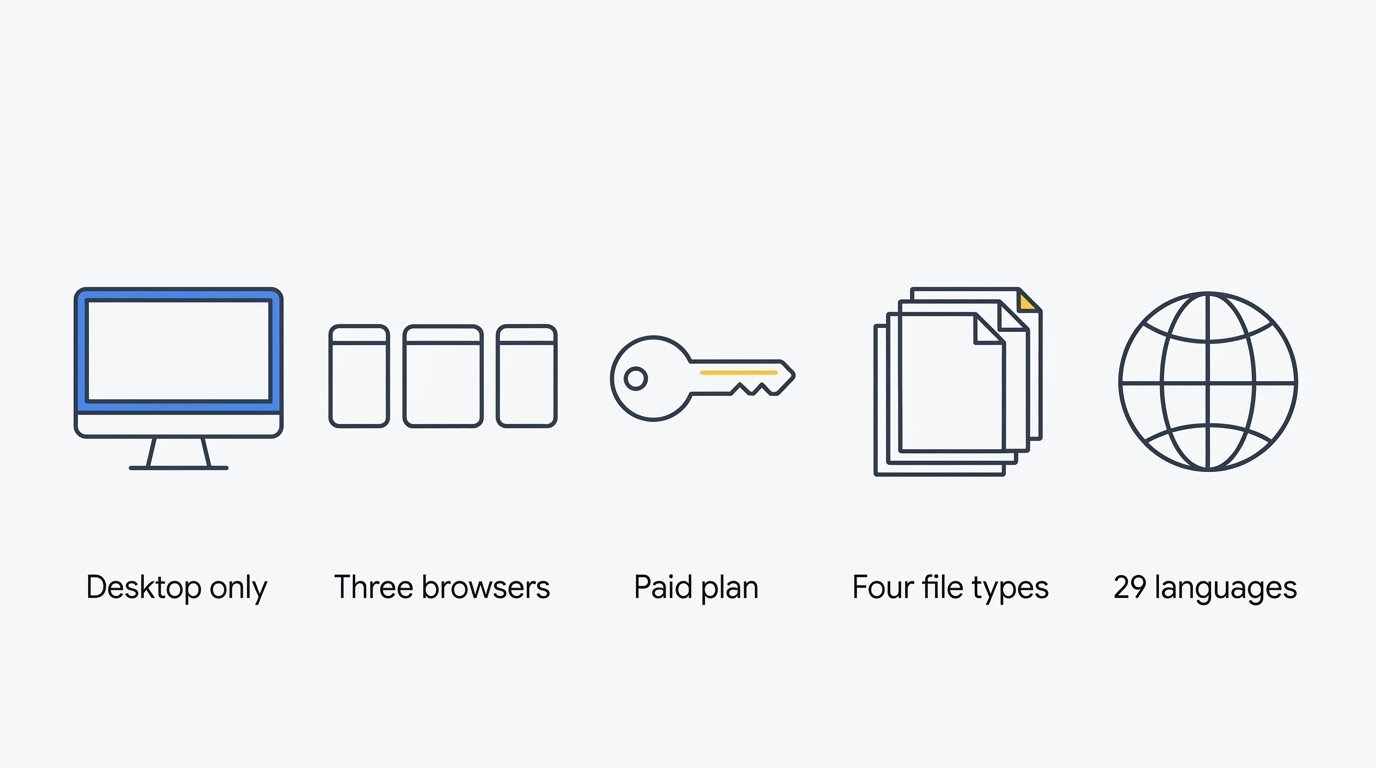
Accepted upload formats are .jpg, .png, .bmp, and .tiff, pulled from your computer or Google Drive, and you can also import straight from Google Photos. Pics is available in every country where Workspace accounts work, except personal accounts in Germany, and generation and editing cover 29 languages. Rollout runs on Rapid Release starting September 1, 2026 and Scheduled Release starting September 15, 2026, with up to 15 days before it’s fully visible — if you don’t see it yet, that’s usually the release queue, not an error — the rollout schedule has the dates in full.
Step 1. Open pics.new and write your first prompt
The fastest way in: sign in with an account on a qualifying plan, type pics.new into the address bar the same way docs.new opens a blank document, then write a description in the prompt bar at the bottom of the screen. From there you can attach a reference image by dragging it in, pasting it, or using the Add images button, and style reference is available when you’re working in English. Send the prompt and wait for a set of variants to come back.
- Sign in with an account on a qualifying Workspace or personal plan.
- Type
pics.newinto your browser’s address bar. - Write your description in the prompt bar at the bottom of the screen.
- Optionally attach a reference image — drag it in, paste it, or use Add images.
- Send the prompt and wait for the set of variants to load.
The product rolls out in waves, so the exact placement and labels of on-screen elements can differ a little between accounts — treat the steps above as the shape of the flow, not pixel-perfect coordinates.
Importing instead of generating. If the task is editing an existing file rather than creating one, skip the prompt and upload the source from your computer, Drive, or Google Photos instead — the same object and text tools apply once it’s loaded.
Step 2. Write prompts Google’s own guide recommends
Google publishes a formula for prompts that actually work, and following it saves regenerations more than any other single habit.
The formula Google publishes
Google’s prompting guide lays out a structure: Subject, plus Action, plus Location or context, plus Composition, plus Style. The official example contrasts a bare “A cat” with “A fluffy ginger cat curled up and napping peacefully on a sun-drenched windowsill, with soft natural light” — the second version gives Nano Banana enough to work with on the first pass.
| Weak prompt | Stronger prompt |
|---|---|
| “A cat” | “A fluffy ginger cat curled up and napping peacefully on a sun-drenched windowsill, with soft natural light” |
| “No cars” | “Empty street” |
Two habits that change the result
- Describe what you want to see rather than what you want gone — “an empty street” reads better than “no cars,” because the model has something concrete to render instead of a negative to infer.
- Put text you want drawn into the image in quotation marks, so it’s separated from the rest of the instruction.
- Start with a short prompt, look at the variants, then add detail in the next round rather than trying to specify everything at once.
Step 3. Pick a variant instead of re-rolling
The Google Workspace launch announcement describes Pics as offering a helpful set of alternatives based on your prompt, and the consumer announcement puts the point directly:
Pics generates several options from a single prompt, so you can choose your favorite from a variety of iterations.
Google, Try Google Pics
That single sentence changes how you should spend your prompts. Judge each generation on composition and lighting — the two things that are expensive to fix after the fact — and leave small flaws, like a slightly off object or a rough patch of texture, for the editing tools in the next steps. Each new generation draws from your usage limit, so if none of the variants are in the right neighborhood, rewrite the prompt rather than sending the same one again hoping for a different roll.
Step 4. Edit a single object without touching the rest
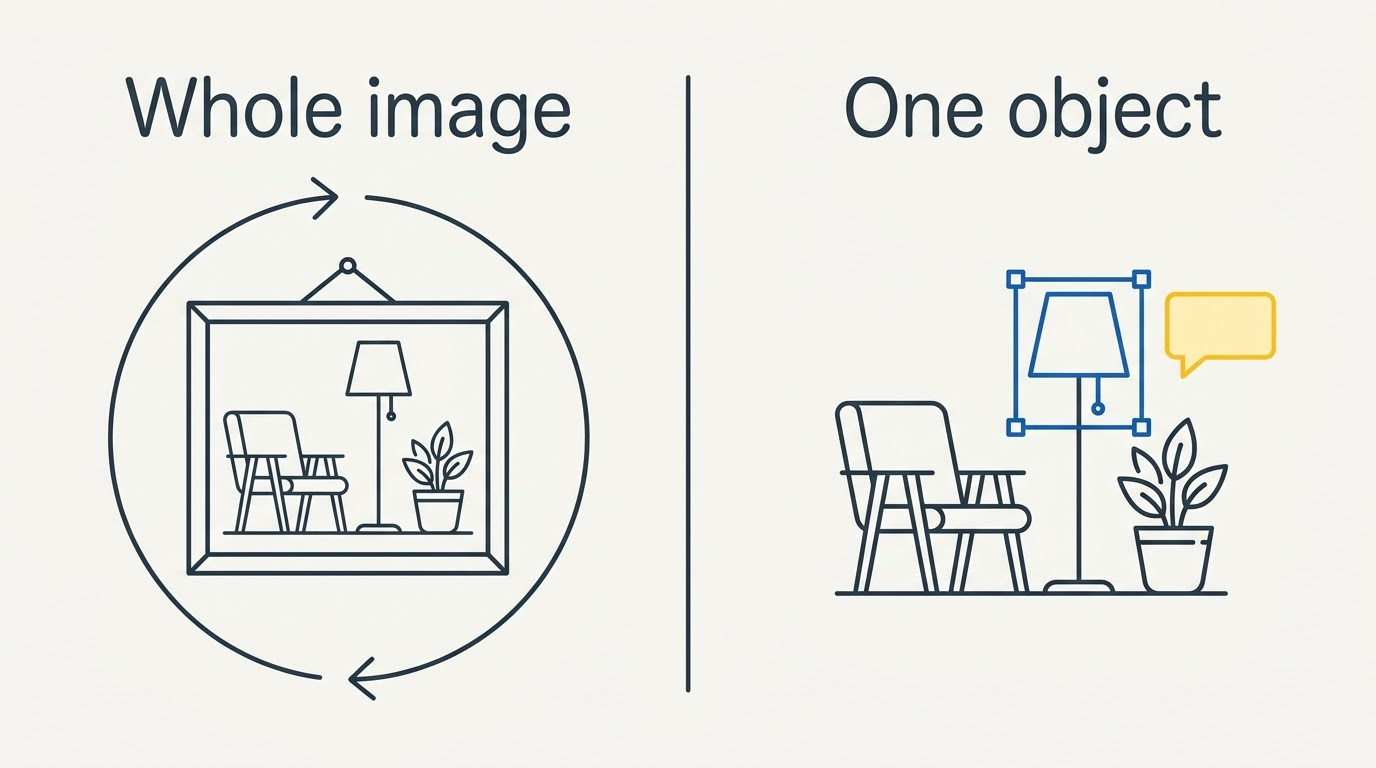
The Google Pics editor separates object edits from full regenerations through segmentation, so a change to one element doesn’t reshuffle the rest of the frame.
Editing one element
Hover over the object, click it, describe the change in words, press Add, then press Apply. Everything else in the frame — the background, the lighting, the rest of the composition — stays exactly as it was, so an approved layout survives the edit instead of getting regenerated from scratch.
Selecting an area
For a change that spans more than one object, click and drag to select an area, type what should happen to it in the pop-up, then press Add and Apply. It works like leaving a comment on a paragraph in Docs, except the comment lands on a region of the picture.
Batching a round of feedback
Multiple notes can be queued up and applied together in one pass, which is both faster and cheaper on your quota than sending three separate edits one after another. Segmentation is covered in more depth in the feature breakdown.
Step 5. Change or translate the text inside the image
Pics reads text that’s already rendered inside an image on its own — you don’t need to mark it manually.
Fixing copy in place
Google’s help documentation states that Pics automatically detects text in your images: hover over the text, click it, type a replacement or describe the style you want, then press Save and Apply. A wrong date, price, or product name gets corrected directly in the image, without going back to whoever built the original layout.
Localising an approved layout
The same detection lets you translate the words inside an image without touching the design around them — font and spacing stay put, only the copy changes, across the 29 languages Pics supports for generation and editing. For teams shipping the same banner into several markets, this is the fastest win in the whole editor: one approved design, several language passes.
Step 6. Crop, upscale, download and share
Once the content of an image is settled, the finishing tools take over: Google’s editing guide covers cropping and aspect ratio, and its guide to downloading, printing, and sharing Pics images covers everything after that. Aspect-ratio options in the dropdown include the usual 16:9, 1:1 and 4:3.
| Task | Where to do it |
|---|---|
| Crop | Crop at the top — drag the corners to crop, drag the dial at the bottom to rotate, pick an aspect ratio from the dropdown |
| Download | Download icon, top right — choose Original, 2K JPEG, or 4K JPEG (JPEG only) |
| Down-arrow icon, top left, then Print | |
| Share | Share icon, top right — set access to Viewer or Editor, then Send |
Crop last, not first
Cropping before the object edits in Step 4 means throwing away pixels you might still need for a later fix — crop after the content is locked, not before.
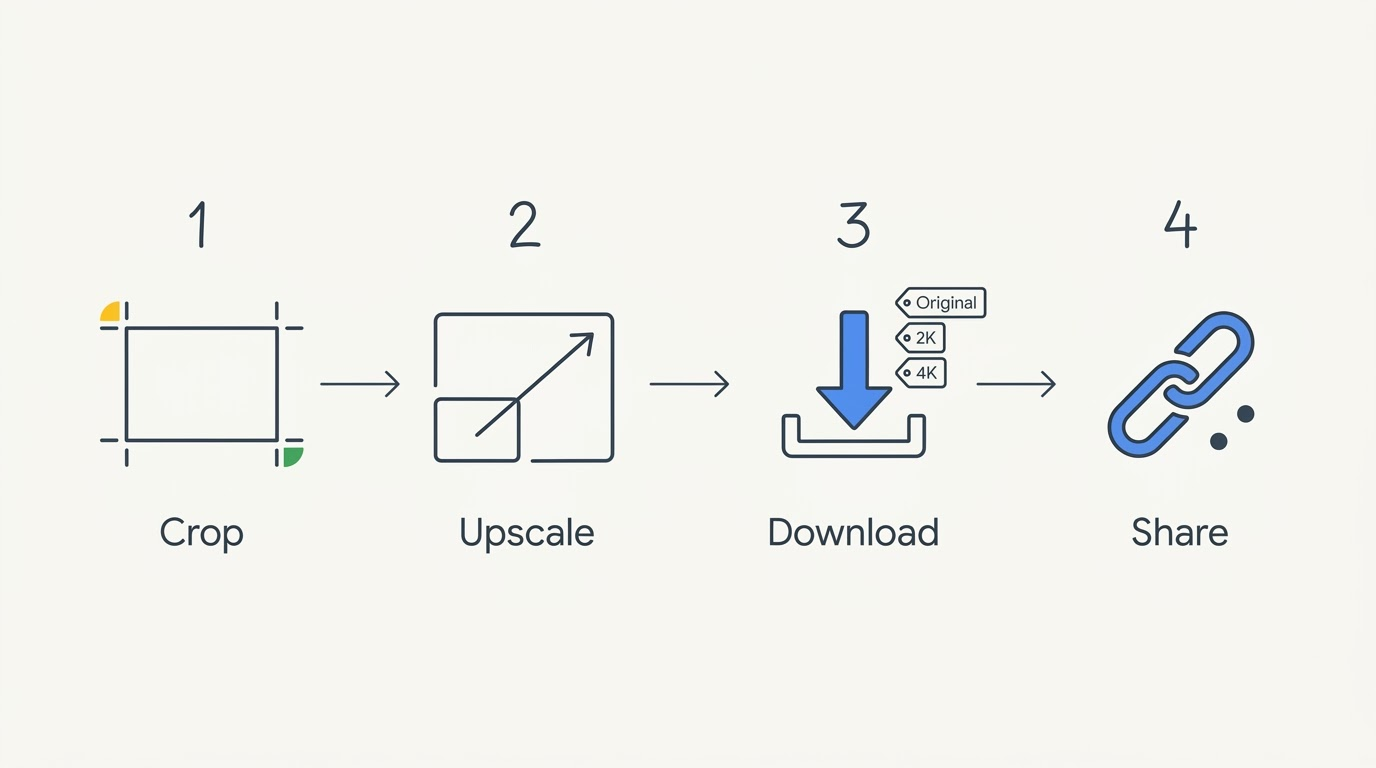
Choosing a resolution deliberately
Save 4K for images that are actually going to print or a projector: Google’s documentation notes that downloading at higher resolutions uses your promotional limits faster than staying at Original size. Inside Workspace Experiments specifically, downloads are capped at the original size regardless of what you pick.
Editing images inside Google Docs and Slides
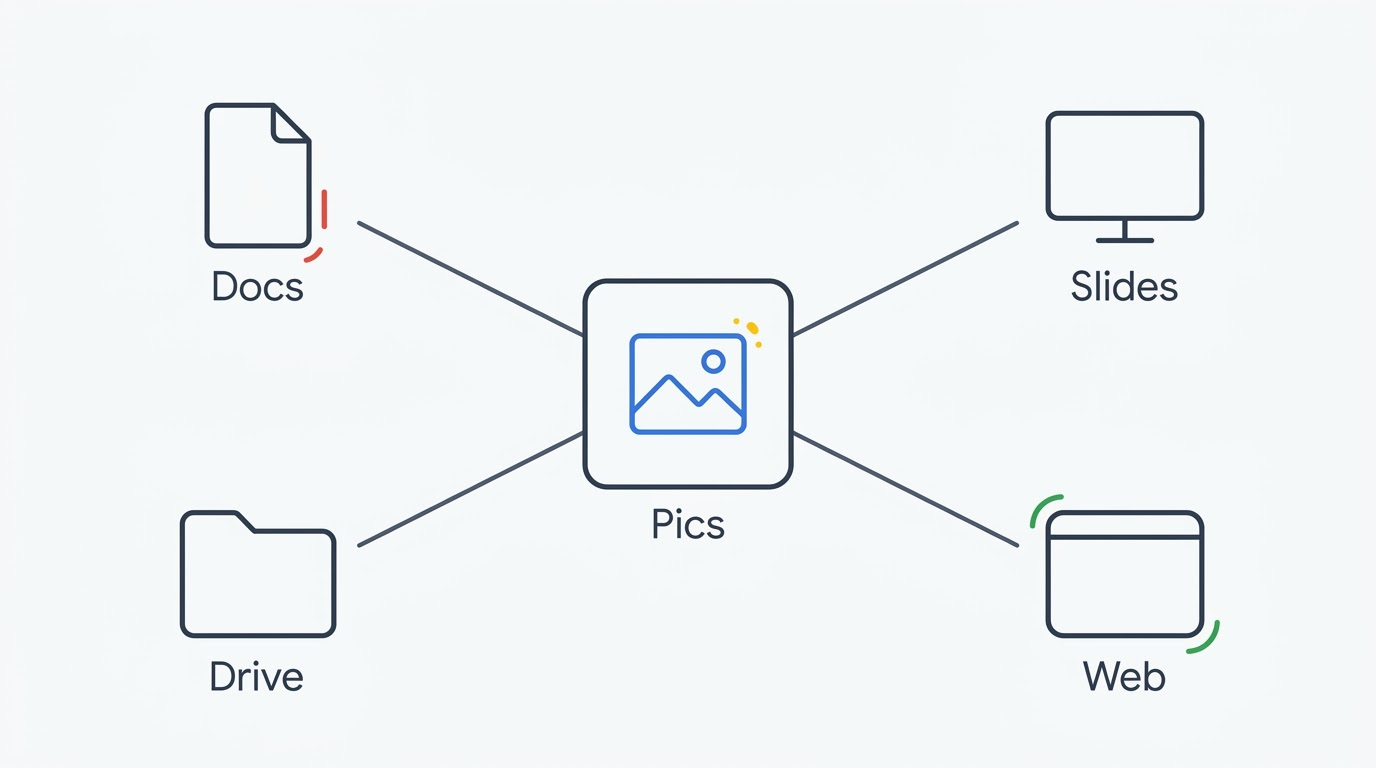
Pics doesn’t require leaving Google Docs or Slides to make an edit — the editor opens inside the document itself.
The same three steps in both apps
- Open the file and click the image you want to change.
- Click Edit image — the Pics editor opens inside Docs or Slides, and Minimize or Open editor lets you collapse and bring it back without losing your place.
- When you’re done, click Replace image, top right, to drop the result back into the document.
If clicking a picture opens the regular bottom prompt bar instead of the full editor, that account doesn’t have Pics access yet rather than something being broken. The same three steps apply in Slides as in Docs. Working across the suite is covered in the Workspace integration guide, and the Docs-specific walkthrough goes deeper on documents.
Drive, sharing and version history
Files created in Pics live in Google Drive like any other Workspace object — new ones can be started from Drive’s “+ New” menu. A colleague can be invited into the same file the way they’d be invited into a Doc, and version history keeps earlier states of the image so a change can be rolled back if it goes the wrong way.
Habits that save time and quota
Google hasn’t published exact numbers for its generative AI usage limits, only that downloading at higher resolutions burns through them faster, and that the current expanded access holds at least through February 28, 2027, with a warning promised before any reduction, according to Google Workspace Updates. Using Pics from other Workspace surfaces, like editing an image inside Slides, draws on the same generation limits as using it directly at pics.new.
- Send one well-built prompt instead of a chain of near-identical regenerations.
- Queue several edit notes and apply them in a single batch.
- Import an existing asset when the task is a variation, not a new prompt.
- Save upscaling for the very end, and only for what will actually be printed or projected.
- Keep the working file in Drive so version history covers you if an edit goes wrong.
The Pics editor rewards this kind of restraint more than clever prompting does — most of the quota gets spent on regenerations that a targeted object edit would have handled for free.
How Pics differs from Google Photos
The name overlap trips up a lot of people searching for this guide, so it’s worth stating plainly: Google positions Pics as a creative tool inside Workspace for building and editing images for work, home, and school projects. Google Photos does a different job — it’s where personal pictures get backed up, organized, and searched. One is a workbench for making and fixing images; the other is a library for the pictures you’ve already taken. A fuller side-by-side comparison sets the two products against each other point by point, and this is also where the Google Pics AI image editor itself earns its name, since neither generation nor object editing has any equivalent inside Photos.
Official sources
- Get started with Google Pics — access, browsers, file types and reference images.
- Edit images with Google Pics — element edits, area selection, in-image text and cropping.
- Download, print, or share Pics images — resolutions, printing and sharing roles.
- Write effective prompts for Google Pics — Google’s own prompt formula.
- Learn about Google Pics availability — plans, countries, 29 languages and usage limits.
- Edit your Docs images with Google Pics and Edit your Slides images with Google Pics — the in-app editing steps.
- Try Google Pics and the Workspace launch announcement — the September 1, 2026 launch posts.
- Google Workspace Updates — rollout pace, admin controls and usage limits.
- Google Pics product page and Google AI plans.